Spaces · 2 min read
What it means to be a Space admin
The rights, responsibilities and risks that come with administering a Space.
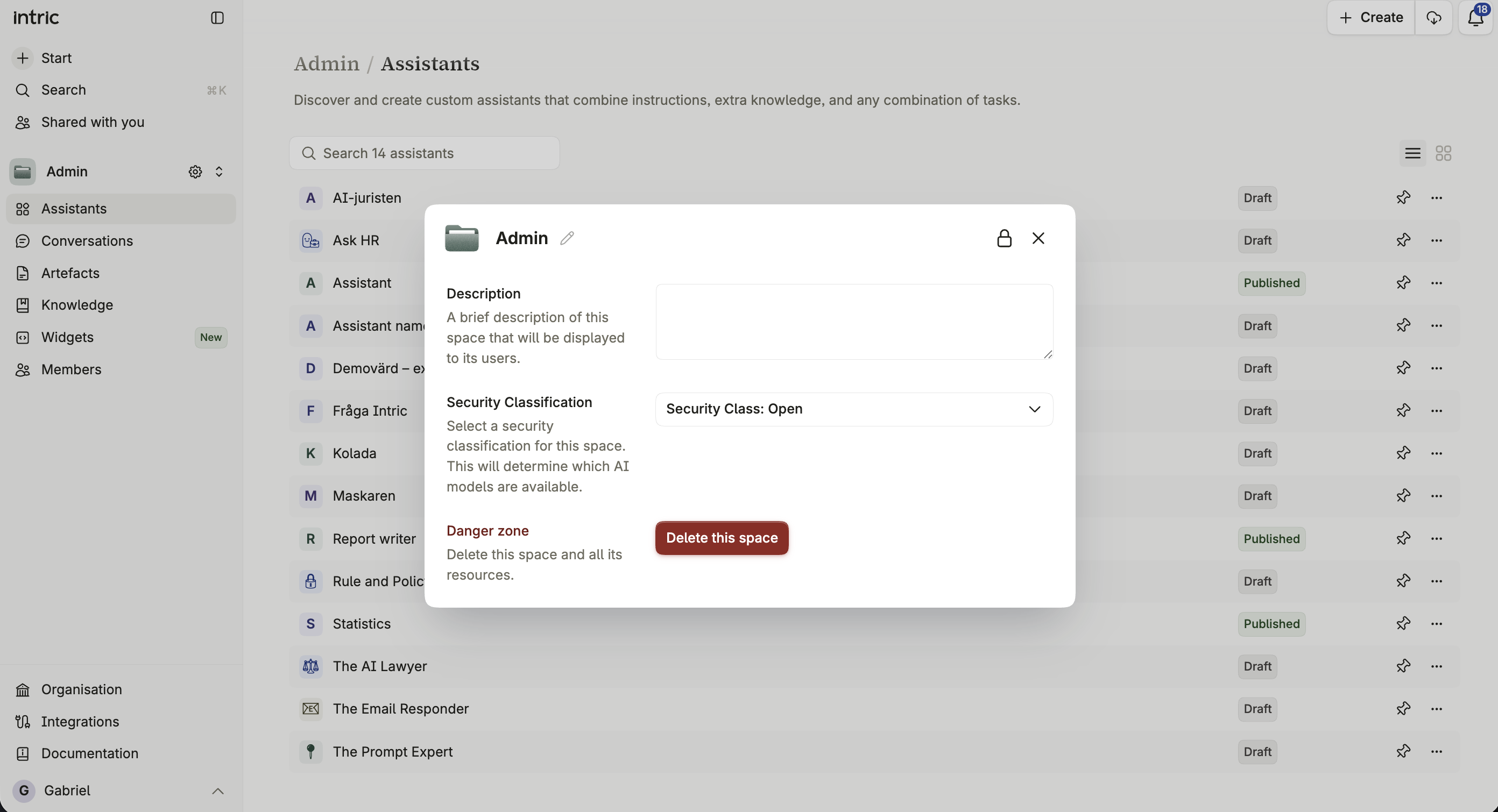
As a Space admin, you have full control of one Space: its members, its settings, its security classification, and everything in it. That’s substantial access, and most of the risk in it is about who you let in rather than what you configure.
What you can do
Section titled “What you can do”Access and members
Section titled “Access and members”- Invite and remove members.
- Assign member roles — Admin, Editor, or Viewer.
- View every current member and their role.
Settings and configuration
Section titled “Settings and configuration”- Enable or disable Insights for individual assistants, which saves user interactions and lets Space editors and admins see the questions asked from the moment it is switched on.
- Configure a data retention policy for individual assistants.
- Manage the Space’s connected knowledge sources.
- Manage the Space’s own settings — name, description, and preferences.
How this differs from an organization Admin
Section titled “How this differs from an organization Admin”A Space admin’s authority stops at the edge of their own Space. An organization Admin, by contrast, has authority across every Space, every user, and every organization-wide setting. See Roles in Intric for the full comparison.
Responsibilities and risks
Section titled “Responsibilities and risks”Think carefully before adding members
Section titled “Think carefully before adding members”When you invite someone, they gain access to every file in the Space’s knowledge, every assistant’s instructions and attachments, and — if Insights is enabled — everyone’s questions and conversations since it was switched on. Review what’s already there before adding someone, and only invite people with a genuine need.
Settings that affect privacy
Section titled “Settings that affect privacy”Insights, when enabled, saves user interactions beyond standard logging and makes them visible to other Space editors and admins. Data retention settings control how long messages are stored before automatic deletion, applying to messages only — not files or other data.
Changing the security classification
Section titled “Changing the security classification”Changing a Space’s security classification can immediately make some models or tools unavailable to assistants that were relying on them. Review the affected resources before you confirm a change.
Actions that need a higher role
Section titled “Actions that need a higher role”Some actions — organization-wide policy changes, creating or reordering security classifications, managing billing — sit with an organization Admin rather than a Space admin, no matter how much control you have over your own Space.
Good practice
Section titled “Good practice”- Grant the minimum role a member actually needs.
- Review your member list and settings periodically rather than only at setup.
- Set clear guidelines for what can and can’t be shared in your Space.
- Coordinate with your organization’s administrators on anything that touches compliance.