Introduction · 2 min read
Navigation
Find your way around Intric: the start page, the sidebar, Spaces, search, and what is shared with you.
When you sign in, you land on your personal assistant — your starting point for the whole platform. A sidebar on the left gives you access to everything else, and you can show or hide it depending on how much space you want for the conversation itself.
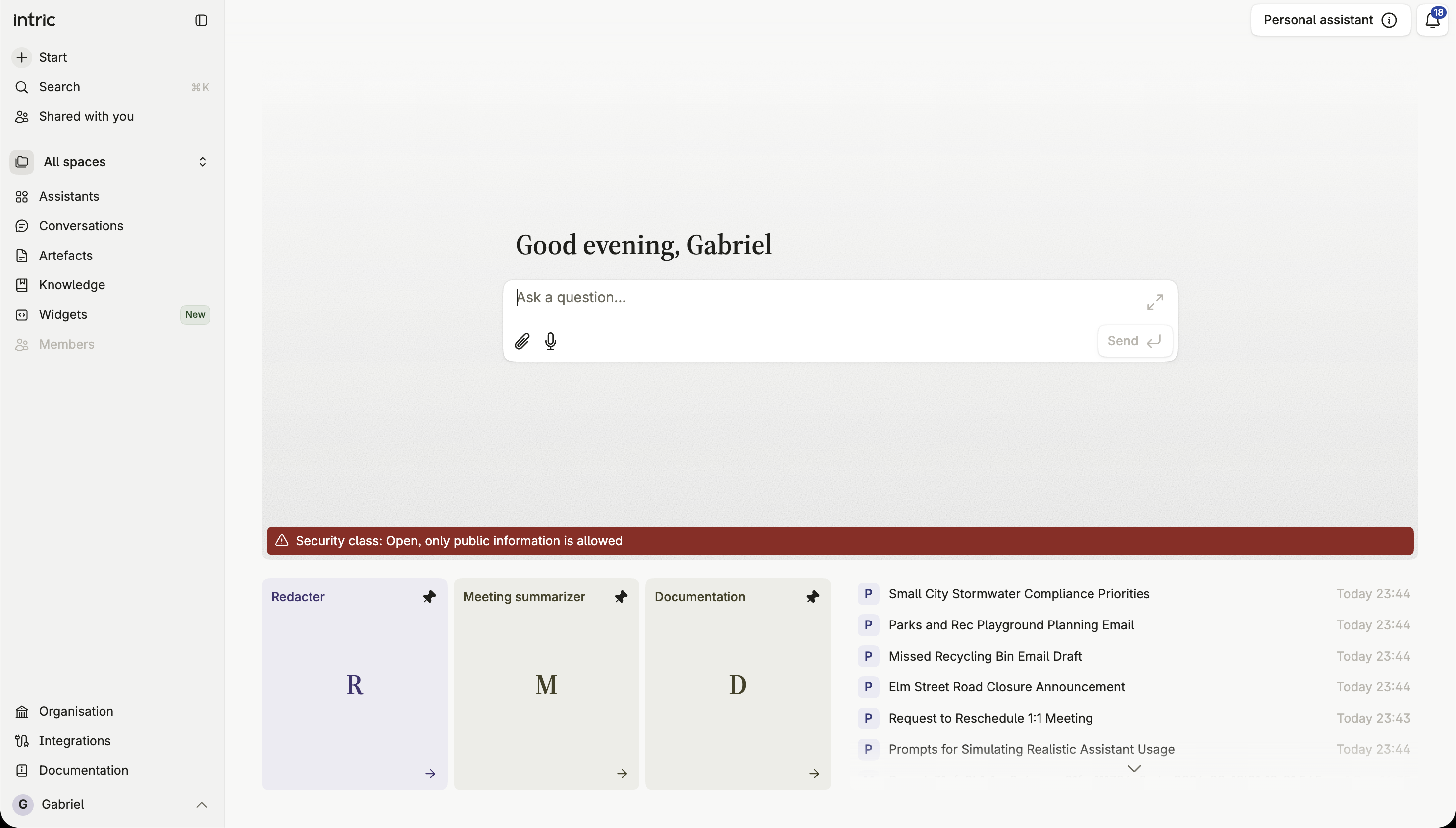
The start page
Section titled “The start page”Start at the top of the sidebar takes you back to your personal assistant from anywhere. Below it, pinned assistants and your recent conversation history give you quick access back into whatever you were working on.
The sidebar
Section titled “The sidebar”The sidebar filters to whichever Space you have selected in the space picker near the top — or to All spaces, which shows everything you have access to across every Space at once.
Pinned assistants
Section titled “Pinned assistants”Pin an assistant to keep it one click away regardless of which Space you’re currently viewing. Pinned assistants are listed in the order you pinned them, most recent first, so the one you just pinned is at the top.
Assistants
Section titled “Assistants”Every assistant you have access to, filtered to the selected Space or shown across all of them. Create a new assistant directly from here.
Conversations
Section titled “Conversations”Your full conversation history across every assistant you use. See Conversations.
Artefacts
Section titled “Artefacts”Every document, presentation, or other artefact your conversations and plans have produced. Star one to keep it close at hand. See Artefacts.
Multi-step workflows you can run on demand or on a schedule, split into Activity (ongoing and finished runs, plus what’s coming up) and Catalog (every plan you’ve saved). See Plans.
Widgets
Section titled “Widgets”Chat windows you’ve embedded on a public website, each pointing at one assistant. See Widgets.
Members
Section titled “Members”Who has access to the currently selected Space, and what role each person holds. See Members.
Moving between Spaces
Section titled “Moving between Spaces”The space picker near the top of the sidebar switches which Space’s assistants, conversations, artefacts and plans you’re looking at. Choose All spaces to see everything at once, regardless of which Space it belongs to.
Shared with you
Section titled “Shared with you”Shared with you, near the top of the sidebar, collects the artefacts other people in your organization have shared with you directly. See Shared with you.
Search
Section titled “Search”Press Cmd+K (Mac) or Ctrl+K (Windows) to open search from anywhere in the platform. It searches across assistants, conversations, plans and artefacts at once, and also lets you jump straight to a page or run a command.
Integrations and Documentation
Section titled “Integrations and Documentation”Below the main sidebar sections, Integrations is where you connect your own account to any service your organization has enabled. Documentation takes you to this help center.
The welcome screen
Section titled “The welcome screen”The first screen you see can carry a message from your organization — a short greeting, a link to internal guidelines, or anything else your administrator has configured. You can turn it off for yourself if you’d rather skip straight to your personal assistant on every visit.