Billing · 4 min read
Billing groups
Create groups that map to cost centers, set per-user limits, and grant extra credit.
A billing group is a cost center: a named group with its own admin, a spending limit for each of its members, and its own share of the monthly spend. Every member’s consumption counts toward the group they belong to, whether the member is a person or a widget, and anyone in no group counts toward the Unassigned group instead, so nothing goes unallocated.
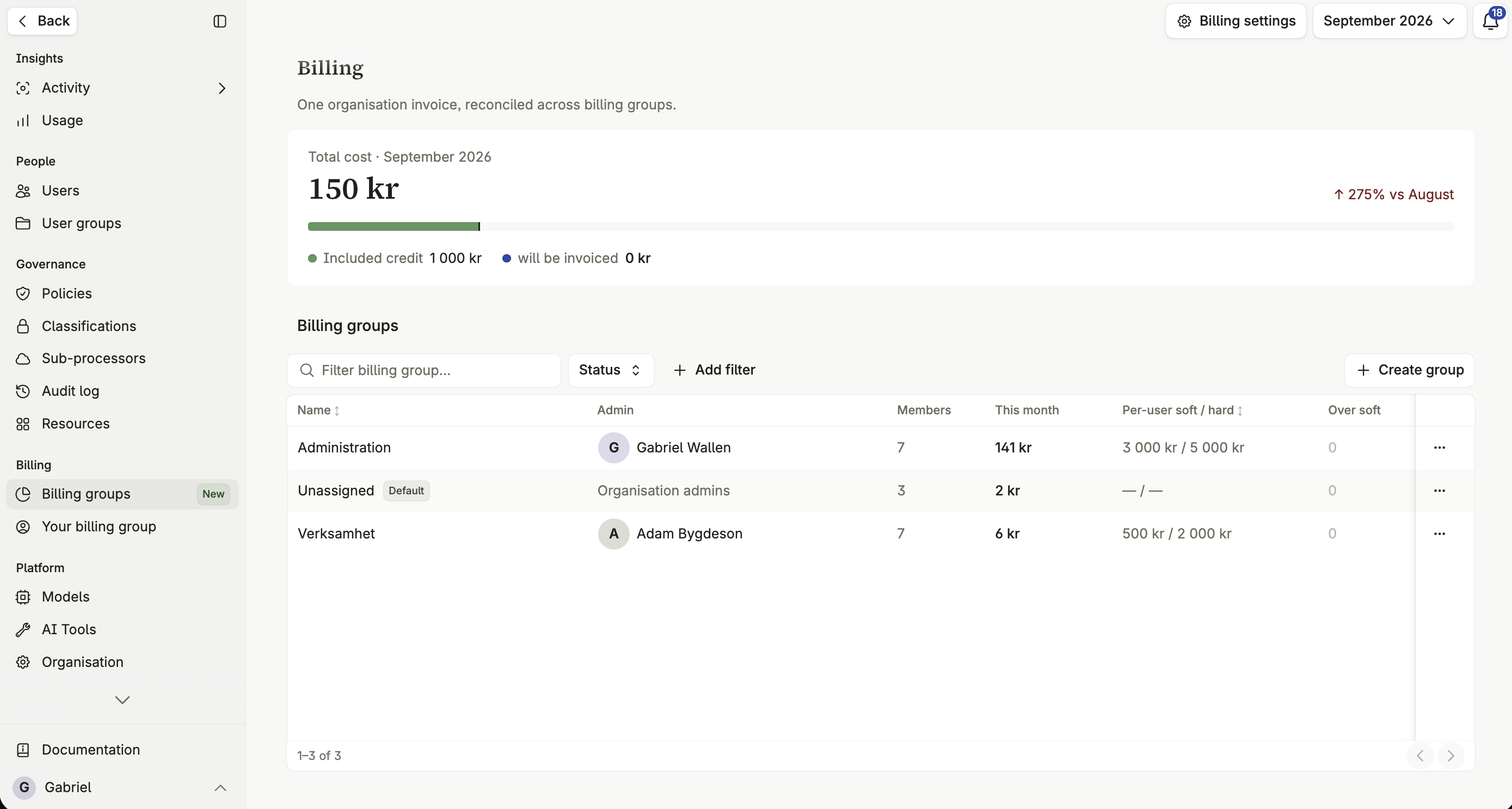
Creating a group
Section titled “Creating a group”Create a billing group
- Open Administration › Billing groups.
- Click to create a new group.
- Give it a name and, optionally, a cost-center reference.
- Choose a group admin.
Billing details and reference
Section titled “Billing details and reference”The name is what appears in reports and in each member’s own consumption view, so use the department’s real name rather than an internal code. Decide on the cost-center reference before you finish — it can be changed later, but reports already exported keep the old value.
Choosing a group admin
Section titled “Choosing a group admin”The group admin manages this group’s limits, credit, and members, and reviews requests to take a widget billed to the group live. This can be a specific person, or left to organization admins collectively.
Finding a group in the list
Section titled “Finding a group in the list”The billing groups table sorts by name, admin, members, spend, spend cap, and the number of members over their cap. Sorting runs across every group in the organization, not only the page you happen to be looking at — so sorting by spend really does put the most expensive group first.
Members
Section titled “Members”Adding members
Section titled “Adding members”Members are added from the Unassigned group. Choose Add members, search by name — or email, for a person — and pick everyone you want, and they move into this group. Someone already in another group has to be removed from it first.
Widgets as members
Section titled “Widgets as members”A widget is a member of a billing group the way a person is, and its conversations count toward that group’s spend. In the member list it appears under its own name, marked Widget.
A new widget joins the billing group of the person who creates it. It stays there if that person later moves to another group — only moving the widget itself changes where its costs go.
The group admin also reviews requests to take one of the group’s widgets live. See Publishing and approval.
The Unassigned group
Section titled “The Unassigned group”A user who belongs to no billing group counts toward the organization-wide Unassigned group by default, so nothing goes untracked.
Moving a member to another group
Section titled “Moving a member to another group”Widgets and people move between groups the same way: out to Unassigned, then into the new group.
Move a widget or a person to another group
- Open the group the member is in now.
- Choose Remove from group on the member. They move to Unassigned.
- Open the group you want them in and choose Add members.
- Search for the member, pick them and click Add.
Spend from then on counts toward the new group; what was already recorded stays with the old one.
An organization admin can move a member between any two groups. A billing group admin can move members only between Unassigned and their own group: they can release a widget from their group, or take one in from Unassigned. Moving it straight into someone else’s group needs that group’s admin, or an organization admin, to pick it up.
Limits
Section titled “Limits”Soft and hard limits
Section titled “Soft and hard limits”A soft limit notifies the member and the group admin when it’s reached — an early warning, not a block. A hard limit locks the member out of further paid AI use once reached, and notifies both the member and the admin.
Limits are set per group, not per member: every person and widget in the group has the same soft and hard limit, measured against their own spend. To cap a widget differently, give it a billing group of its own.
A widget that reaches the hard limit is blocked like a person, until the next period or until the group admin grants it extra credit. When a widget reaches the soft limit, only the group admin is notified — there’s no one on the widget’s side to read it.
What happens when a limit is reached
Section titled “What happens when a limit is reached”Once a member’s usage crosses the hard limit, they’re blocked from further consumption until the next period resets it, or the admin grants extra credit.
Granting extra credit
Section titled “Granting extra credit”A group admin can grant a member temporary extra credit to handle a specific need without raising the whole group’s limit. It resets at the start of the next period, returning the member to the group’s configured limit.