Abilities · 2 min read
Redaction
Detect and permanently remove sensitive information from an uploaded PDF.
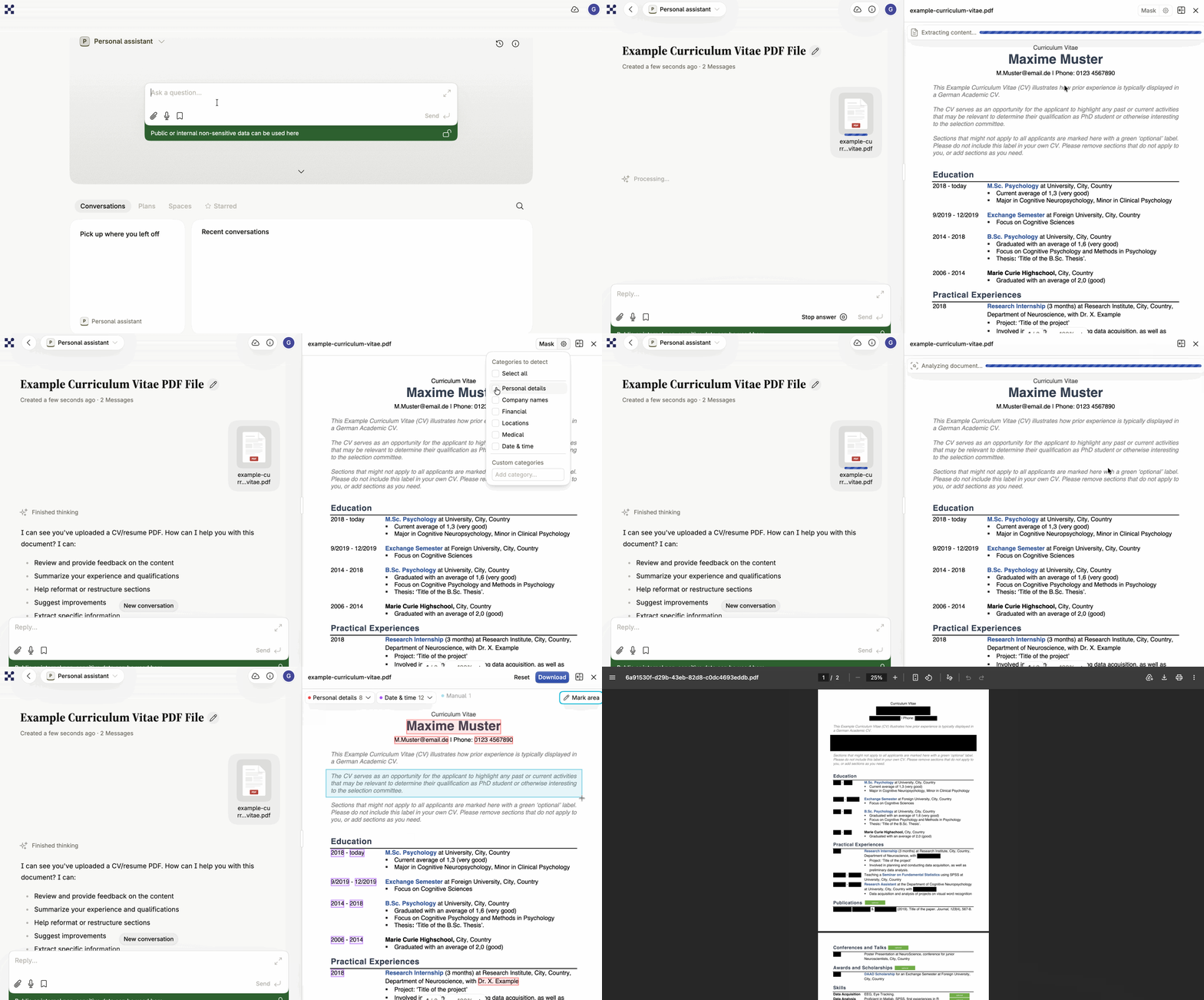
Redaction finds sensitive information in a PDF and lets you black it out permanently. Intric detects candidates in the categories you choose, shows you where they are, and lets you correct the selection before anything is applied. The result is a new PDF where the redacted text has been destroyed, not merely covered.
How detection works
Section titled “How detection works”Redaction runs in two steps, page by page, across the whole document:
- AI detection — the assistant’s selected completion model scans each page, identifying entities that match the categories you’ve selected.
- Coordinate mapping — Intric locates each detected entity’s exact position on the page, matching the text against the document’s layout to determine the bounding box to redact.
Only one model is involved: the completion model configured on the assistant you select when you start the analysis.
Detection categories
Section titled “Detection categories”Before running an analysis, choose which categories to detect:
- Personal details — names, email addresses, phone numbers, personal identity numbers, personal dates such as birthdays, and personal locations such as home addresses.
- Company names — organization names, organization numbers, and organization-associated locations.
- Locations — street addresses, postal codes, cities, countries, and other geographic references.
- Financial — credit card numbers, IBAN or bank account numbers, social security numbers, monetary amounts, invoice numbers, and VAT numbers.
- Medical — medical information, diagnoses, and treatments.
- Date and time — all dates and times, in any format.
- Custom categories — define your own free-text categories for the AI to look for, alongside the standard ones.
Redacting a document
Section titled “Redacting a document”Running an analysis
Section titled “Running an analysis”- Upload a PDF in a conversation and wait for Intric to process it.
- Click the PDF to open it in the side panel as an artefact.
- Click the settings icon next to the Redact button to choose which categories to detect.
- Select the assistant whose model should perform the detection.
- Click Redact to start the analysis. A progress bar tracks how far it’s gotten.
Once analysis completes, review the detected entities and their highlighted positions, adding, removing, or adjusting individual redaction boxes before applying anything. You can also draw a redaction box manually over anything the AI missed, or over content you want removed regardless of category.
Applying the mask and downloading
Section titled “Applying the mask and downloading”- Apply the mask once you’re satisfied with the selections.
- Download the redacted PDF.
Requirements and limits
Section titled “Requirements and limits”- Assistant model — detection runs on the completion model configured on the assistant you select. Make sure that model is enabled for your organization.
- Text extraction — the PDF needs extracted text content, produced during upload. If a file has no page-level text, you’ll be asked to re-upload it.
- File size — PDFs must be under the configured maximum file size for redaction, 3 MB by default.
Reviewing your work
Section titled “Reviewing your work”Always check the redacted PDF before you rely on it — the AI can miss entities or flag false positives. Redaction works best on text-based PDFs with clear, readable content; a scanned document depends on how well its text was extracted at upload.