Functionality · 1 min read
Masking
Detect and redact sensitive details in uploaded PDFs — automatically and by hand.
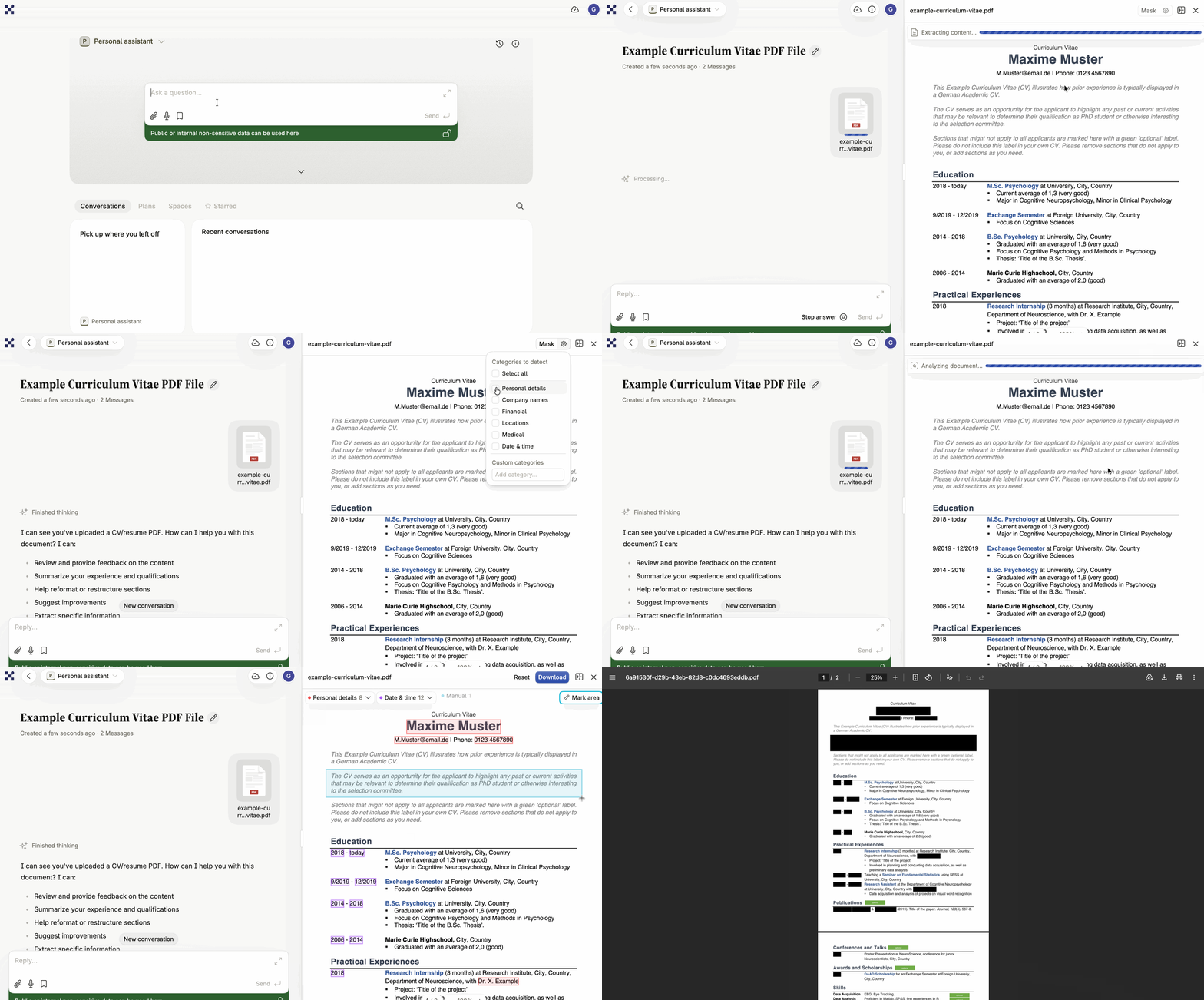
Masking lets you find and cover sensitive details in an uploaded PDF. It is available to every user: upload a PDF in a conversation, click the file to open the preview, and choose Mask in the top right. The button appears once Intric has processed the document and been able to extract text from it.
How details are found
Section titled “How details are found”Detection happens in two stages:
- AI detection — the assistant’s completion model reads one page at a time and identifies details matching the categories you selected.
- Coordinate mapping — Intric locates where in the PDF those details sit, by matching the detected text against the document’s layout. That produces the exact boxes to mask.
The process repeats page by page. Only one model is involved: the one configured on the assistant you pick when you start the analysis.
Categories you can choose
Section titled “Categories you can choose”Click the gear icon next to the Mask button to choose what gets detected:
- Personal details — names, email addresses, phone numbers, national ID numbers, personal dates and addresses
- Company names — organisation names and registration numbers
- Locations — street addresses, postcodes, cities, countries
- Financial — card numbers, IBAN/bank accounts, amounts, invoice and VAT numbers
- Medical — medical information, diagnoses and treatments
- Date/time — dates and times in any format
- Custom categories — describe in free text what the AI should look for
Review before you apply
Section titled “Review before you apply”Detection is a proposal, not a decision. Before applying the mask you can add, remove and adjust boxes by hand — both to cover something that was missed and to uncover something masked unnecessarily.
Masking is permanent. When you apply it, pages are rasterised to images and black rectangles are drawn over the marked areas. The underlying text cannot then be recovered from the masked file. That is the point of the feature — and it is also why the review step matters.
Worth knowing
Section titled “Worth knowing”- The PDF must contain readable text. A pure image scan with no text layer gives no Mask button.
- You can mask a PDF of up to 3 MB. A larger PDF can still be uploaded and discussed (up to 25 MB), but not masked.
- Always check the result in the finished file before sharing it.
Read more in the help center: Redacting information in documents.
Test your knowledge
Question 1 of 2
Why use masking?