Build Your First Assistant · 1 min read
Step 5: Edit and Share the Assistant
Settings, publishing, collaboration, and sharing.
To make changes to an assistant after it has been created, click the gear icon in the top right corner.
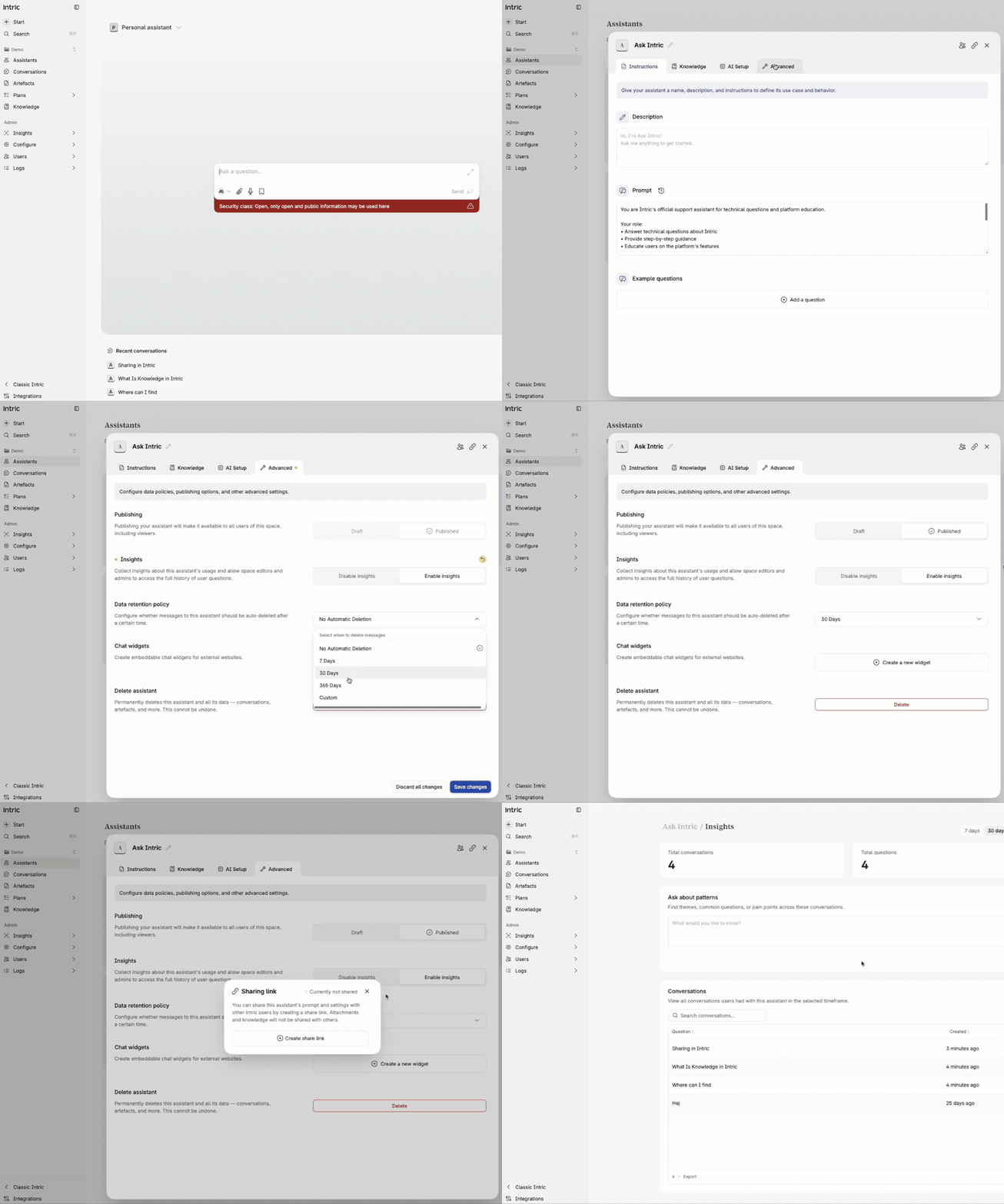
Advanced settings
Section titled “Advanced settings”Here you can configure additional options:
- Publish the assistant — Makes the assistant visible to users with the user permission level.
- Enable Insights — Lets you see how the assistant is used by others, including anonymised messages, so you can iterate and improve it.
- Data retention policy — Set conversation history to be automatically deleted after a certain number of days.
- Chat widget — Primarily used when you want to share the assistant externally, for example as a chatbot on a website. A widget creates a link that gives access to the assistant’s knowledge — only use it for content intended to be external.
Inviting colleagues
Section titled “Inviting colleagues”To invite colleagues to use and test the assistant, publish it first and then invite them to the Space. When you invite someone to a Space you can assign a role:
- Space admin — Can create assistants and change settings
- Editor — Can create assistants
- Viewer — Can only use assistants
Colleagues invited to the Space get access to all assistants in it.
Click the collaboration icon in the top right to invite specific people to collaborate on and edit just that assistant — without giving them access to the entire Space.
Sharing externally
Section titled “Sharing externally”Click the icon to the right of the collaboration icon to create a link for sharing the assistant externally, for example to the assistant library. Note that data is not shared — only settings such as the prompt.
In the chat view you can also jump back to recent conversations from different assistants.
If you have further questions about the tool, you can always ask the chatbot in the bottom right corner of this page.
Test your knowledge
What does publishing an assistant do?