Abilities · 1 min read
Transcription
Record or upload audio and get a full transcript with automatic speaker detection.
Transcription turns spoken audio into text directly in a conversation. Record live from your microphone, capture your computer’s audio alongside it, or upload a file recorded elsewhere — then ask the assistant to summarize, extract actions, or translate what was said.
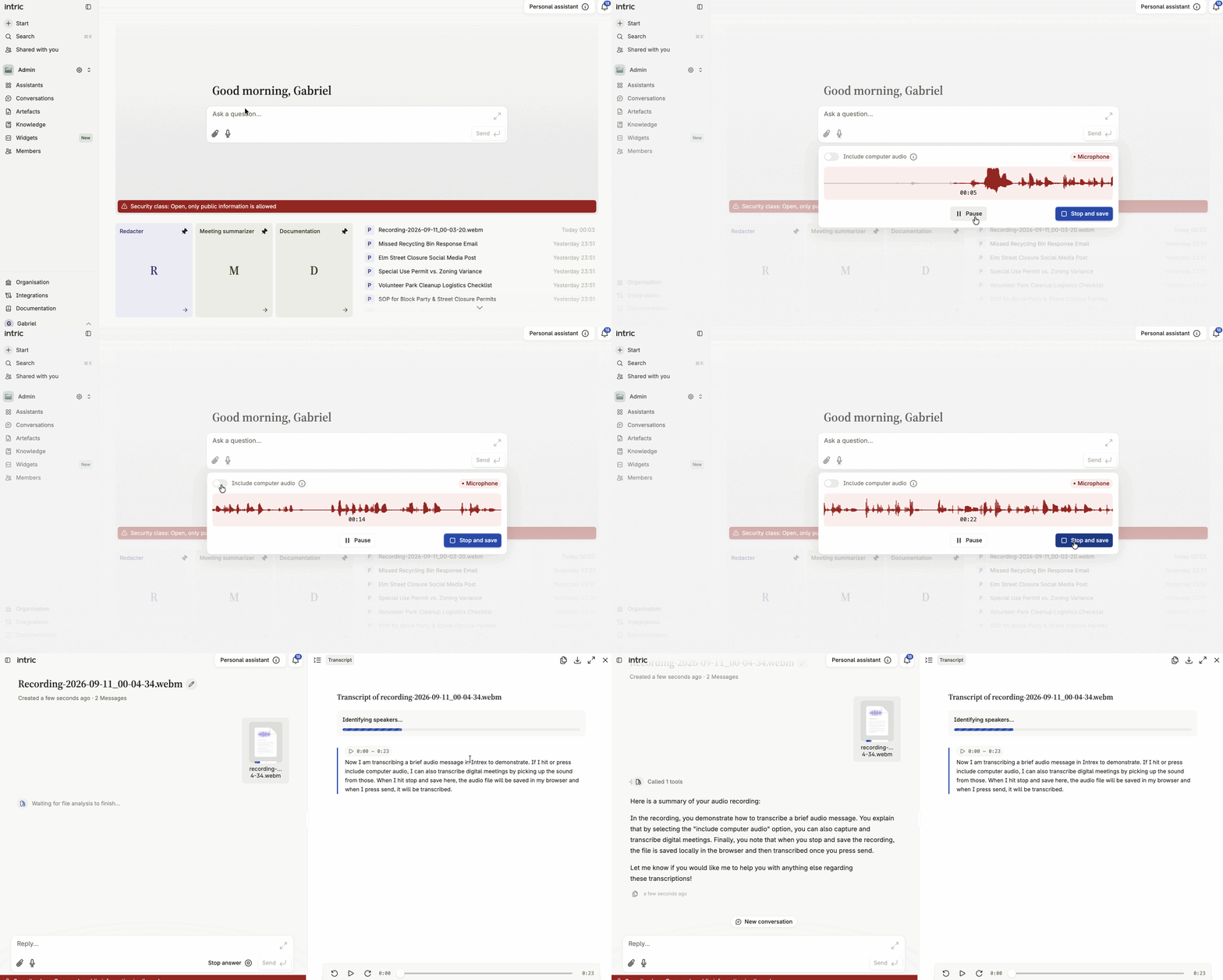
Recording in Intric
Section titled “Recording in Intric”Click the microphone icon in the conversation input to start a live recording from your device’s microphone. Click stop to end it.
Including computer audio
Section titled “Including computer audio”Enable Include computer audio before you start recording to also capture whatever is playing through your speakers — useful for a video call or media playing on your screen.
The recording is saved locally in your browser. Nothing is sent to Intric until you click Send — only then does the audio leave your device and transfer to Intric for transcription.
Uploading a recording
Section titled “Uploading a recording”To transcribe a recording made on a separate device, click the attachment icon in the conversation input and select the audio file. Intric transcribes it the same way as a live recording. Supported file formats depend on the transcription model configured on the assistant.
Which model is used
Section titled “Which model is used”Transcription uses the transcription model configured on the assistant you’re using — the same model handles both speech-to-text and speaker detection. Your audio stays within that model’s data-handling boundary.
The transcript
Section titled “The transcript”Once transcription completes, the full text appears in the conversation. Read it, copy from it, or ask the assistant follow-up questions based on the content — summarize the discussion, extract action points, or translate it into another language.
Speaker detection
Section titled “Speaker detection”When a recording contains more than one voice, Intric segments the transcript by speaker, labeling each one generically — Speaker 1, Speaker 2, and so on — in the order each voice is first heard. There’s currently no way to assign custom names to detected speakers.
If a transcription fails
Section titled “If a transcription fails”A job that fails reports the reason rather than stopping without explanation, so you can tell an unsupported file apart from a recording that didn’t upload cleanly.
Availability
Section titled “Availability”Transcription requires your organization to have a transcription model configured and available in the Space’s security classification. If you don’t see a transcription option where you’d expect one, check with your administrator.