Feature spotlight · 2 min read
Billing groups
Organize users by department, business area, or project — and follow how AI usage and cost divide between the groups.
Better control over AI cost and usage
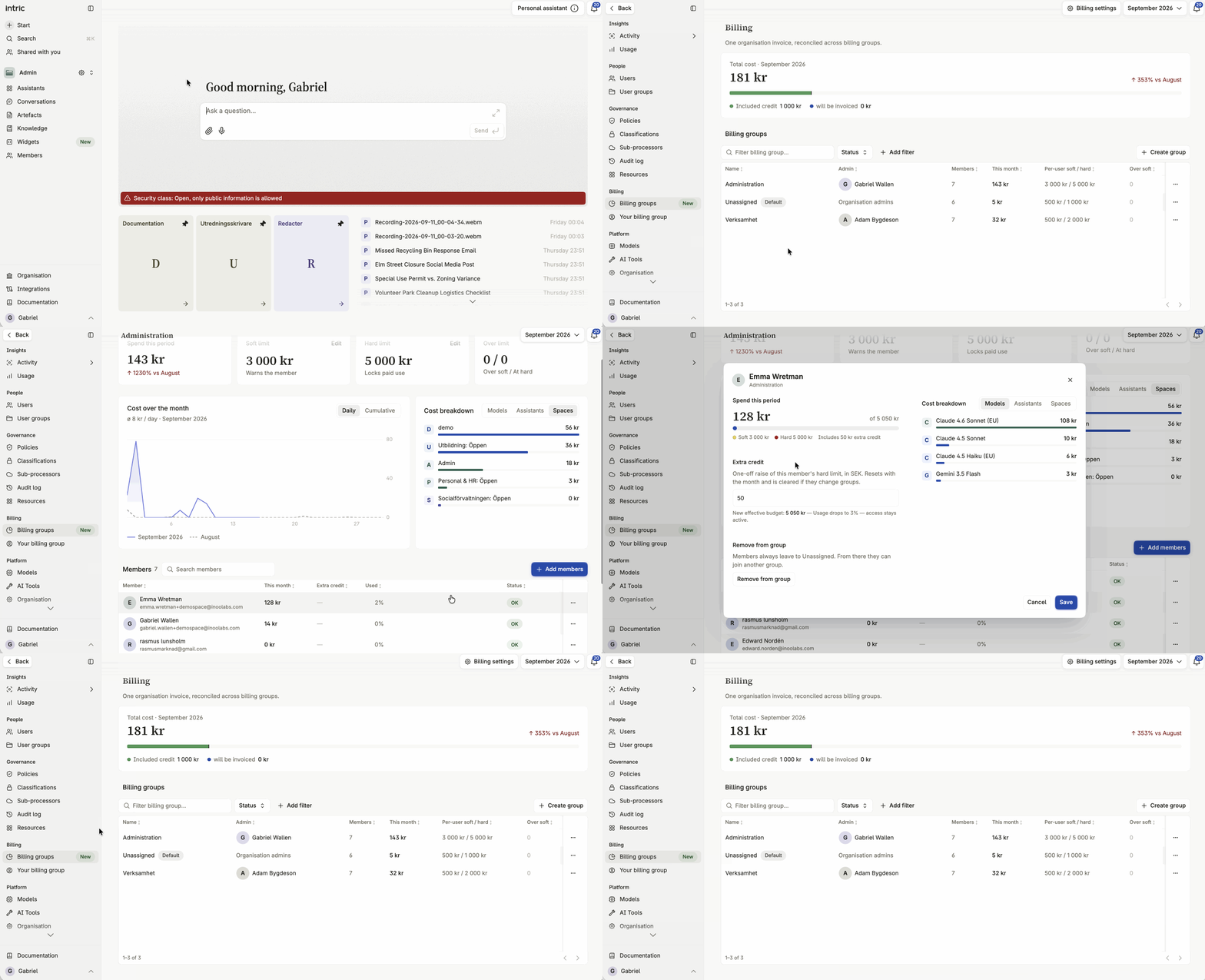
Section titled “Better control over AI cost and usage”Billing groups let you organize users by department, business area, or project, and follow how AI usage divides between them. Usage lands on the right cost center, limits are explicit, and the people who should own the follow-up can do it.
You find billing groups under Administration → Billing → Billing groups.
Why the feature exists
Section titled “Why the feature exists”As AI use grows across an organization, cost has to be traceable in the shape the organization actually has. A single total for everyone rarely answers:
- which department or unit is using AI
- how cost divides across the parts of the business
- who owns follow-up and budget
- when usage is approaching a limit you set
A billing group works as an internal cost center. Every user’s consumption counts toward the group they belong to. Anyone you have not placed in a group of their own counts toward the organization-wide Unassigned group, so no usage goes unallocated.
What you can do with billing groups
Section titled “What you can do with billing groups”Build groups that match the organization
Section titled “Build groups that match the organization”Create groups for, say:
- Administration and corporate services
- Customer service
- IT and digitalization
- A specific project or program
- A regional or local unit
A user can belong to one billing group. A user group for permissions and a billing group for cost allocation are still two different things: one governs access, the other governs which cost center the usage counts toward.
Assign users
Section titled “Assign users”Add users to the right billing group. Their AI usage then counts toward that group’s cost and limits. If a user belongs to no group of their own, the usage counts toward the organization-wide Unassigned group.
Appoint a billing group admin
Section titled “Appoint a billing group admin”A billing group admin owns one specific group rather than the whole organization. The role manages the group’s members, follows its cost, and administers its limits and extra credit.
That lets you delegate the day-to-day ownership to a department head, a finance lead, or a local AI coordinator — without giving that person admin rights across the whole organization.
Set per-user limits
Section titled “Set per-user limits”A billing group can carry individual limits for its members. You have two:
- Soft limit — the user is warned when usage approaches the limit.
- Hard limit — usage stops when the limit is reached.
Limits make cost more predictable without anyone having to follow each user by hand.
Grant temporary extra credit
Section titled “Grant temporary extra credit”When a user needs more room for a time-boxed task, the billing group admin can grant extra credit to that one user. You do not have to raise the limit for the whole group.
The extra credit applies for the current period, and the next period returns the user to the group’s limit.
Follow cost and usage
Section titled “Follow cost and usage”In the billing view, admins follow cost and usage for the whole organization and break the figures down by:
- billing group
- user
- Space
- assistant
- language model
You can also pick a time period and export the summary as CSV, or pull the same figures through the API for further analysis and internal invoicing.
Good to know
Section titled “Good to know”- Billing groups govern cost allocation — not access to Spaces or assistants.
- Usage outside a group of its own counts toward the organization-wide Unassigned group.
- A billing group admin reaches their own group, not the whole organization’s billing data.
- Users can see their own usage and how much of their own limit is left.
- A user who needs more room asks their billing group admin.